# オンライン学習・ビデオ会議システムBigBlueButton v2.4 on Docker
**URL:** https://forum.ficusonline.com/t/topic/444
**Category:** Server
**Created:** [2022 年 3 月 2 日午前 5:42 UTC](https://forum.ficusonline.com/t/topic/444 "2022-03-02T05:42:48Z")
**Posts on this page:** 1
**Page:** 1
### Author:  [@tk-fuse](https://forum.ficusonline.com/u/tk-fuse)
#### Post date: [2022 年 3 月 2 日午前 5:42 UTC](https://forum.ficusonline.com/t/topic/444/1 "2022-03-02T05:42:48Z")
**BigBlueButton** とは、ブラウザ上で参加者各々の音声、映像、テキストメッセージなどを共有することで成立するオープンソースのオンライン学習を目的とした会議システムです。テキストファイルや映像資料などをユーザ間で共有、ビデオ通話が出来る会議システムなので、ビジネス用途での利用も十分可能です。主な機能・特徴は以下の通りです。
**主な機能・特徴**
- **音声・映像による相互コミュニケーション**
- **チャット機能**
- **画面上で共有しているファイルへの書込み、ポインター**
- **意見がある場合の挙手**
- **会議の録画・再生**
- **YouTube等の映像資料の共有視聴**
- **任意のユーザのデスクトップファイル・画面の共有**
- **オープンソース、オンプレミスによる管理・運営**
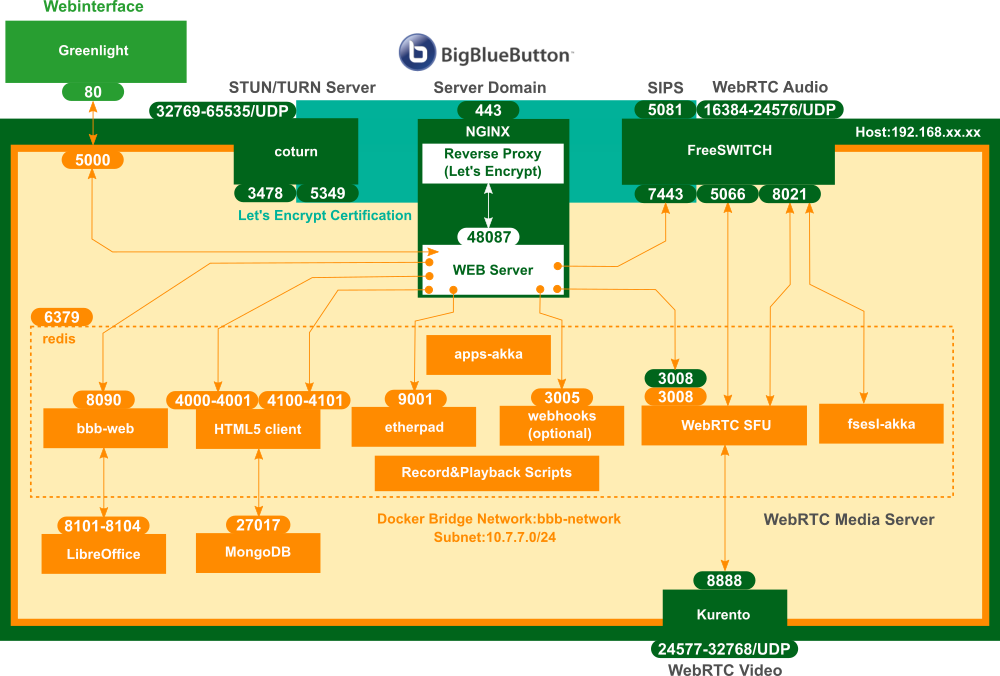
**BigBlueButton** は以下のブロック図による各コンポーネントを一纏めにしたシステムであり、各コンポーネントを統括する司令塔としての役割は、非同期で並列処理を実行する **アクターモデル** によるプログラミング言語 **Scala** と、そのツールキットである **Akka** により作成されたアプリである **apps-akka( + fsesl-akka )** が担います。ウェブインターフェイスデザインは **Greenlight** により提供されます。
**参考サイト**
**BigBlueButton**
> **[BigBlueButton - Resource Center | BigBlueButton](https://docs.bigbluebutton.org/)**
>
> Description will go into a meta tag in
**GitHub BigBlueButton Docker**
> **[GitHub - bigbluebutton/docker at main](https://github.com/bigbluebutton/docker/tree/main)**
>
> Docker files for BigBlueButton (community maintained) - bigbluebutton/docker
**GitHub BigBlueButton**
> **[GitHub - bigbluebutton/bigbluebutton: A complete web conferencing system for virtual...](https://github.com/bigbluebutton/bigbluebutton)**
>
> A complete web conferencing system for virtual classes and more!
**FreeSWITCH**
> **[☏ FreeSWITCH](https://signalwire.com/freeswitch)**
>
> FreeSWITCH is the leading open-source communication framework that powers some of the world's largest telephony infrastructures. It is maintained and…
* * *
### インストールについて
**BigBlueButton** の最小動作条件として、以下のようにメモリ容量16GBを搭載した専用のデスクトップマシンが求められますが、今回は **Ubuntu20.04** で動作する **メモリ8GB** のPCに **Dockerコンテナ** としてインストール・動作確認を行います。
**最小動作条件**
- Ubuntu 18.04 64-bit OS running Linux kernel 4.x
- Latest version of docker installed
- 16 GB of memory with swap enabled
- 8 CPU cores, with high single-thread performance
- 500 GB of free disk space (or more) for recordings, or 50GB if session recording is disabled on the server.
- TCP ports 80 and 443 are accessible
- UDP ports 16384 - 32768 are accessible
- 250 Mbits/sec bandwidth (symmetrical) or more
- TCP port 80 and 443 are not in use by another web server or reverse proxy
- A hostname (such as [bbb.example.com](http://bbb.example.com)) for setup of a SSL certificate
- IPV4 and IPV6 addres
ホストマシンに直接インストールする場合の[**スクリプト bbb-install.sh**](https://github.com/bigbluebutton/bbb-install/blob/master/bbb-install.sh) も用意されています。このスクリプトを利用して **AWSやGCP提供のコンピュータインスタンス** に直接インストールしても良いでしょう。
* * *
### システム全体図
運用システムのネットワークを含んだ全体像は以下の通りです。インターネットプロバイダからグローバルIPが割当てられていないことと**VPN(WireGuard)によりセキュリティを確保したい目的からAWS**を利用したシステムとなっています。システムそのものは **オンプレミスのPC(VPN Peer1)** にインストールされています。

* * *
### インストールする前に
**サーバドメイン** の取得は必須条件です。また以下の事項について事前に一読することをお勧めします。クラウドサービスを提供している **AWS** や **GCP** 等についての知識も必要です。
**FreeSWITCH**
[Command Line Interface (fs\_cli) | FreeSWITCH Documentation](https://developer.signalwire.com/freeswitch/FreeSWITCH-Explained/Client-and-Developer-Interfaces/1048948)
[Sofia SIP Stack | FreeSWITCH Documentation](https://freeswitch.org/confluence/display/FREESWITCH/Sofia+SIP+Stack)
[GitHub - freeswitch/sofia-sip: Sofia-SIP is an open-source SIP User-Agent library, compliant with the IETF RFC3261 specification. · GitHub](https://github.com/freeswitch/sofia-sip)
[SIP TLS | FreeSWITCH Documentation](https://freeswitch.org/confluence/display/FREESWITCH/SIP+TLS)
[Access Control List (ACL) | FreeSWITCH Documentation](https://developer.signalwire.com/freeswitch/FreeSWITCH-Explained/Networking/3965687)
[NAT Traversal | FreeSWITCH Documentation](https://developer.signalwire.com/freeswitch/FreeSWITCH-Explained/Networking/NAT-Traversal_3375417)
[Auto Nat | FreeSWITCH Documentation](https://developer.signalwire.com/freeswitch/FreeSWITCH-Explained/Networking/Auto-Nat_6587487)
[Firewall | FreeSWITCH Documentation](https://developer.signalwire.com/freeswitch/FreeSWITCH-Explained/Networking/Firewall_1048908/)
[WebRTC | FreeSWITCH Documentation](https://developer.signalwire.com/freeswitch/FreeSWITCH-Explained/Configuration/WebRTC_3375381/)
**BigBlueButton**
[Turn Server Configuration | BigBlueButton](https://docs.bigbluebutton.org/administration/turn-server)
[Firewall Configuration | BigBlueButton](https://docs.bigbluebutton.org/administration/firewall-configuration/)
**[nftables wiki](https://wiki.nftables.org/wiki-nftables/index.php/Main_Page)**
**Coturn STUN/TURN Server**
[GitHub Coturn](https://github.com/coturn/coturn)
[Coturn wiki](https://github.com/coturn/coturn/wiki/)
* * *
### 動作確認までのステップ
以下VPNサーバの準備から実際に動作を確認するまでのステップです。
1. **AWS+WireGuardによるVPNサーバ構築**
2. **Docker版BigBlueButtonのダウンロード**
3. **Let’s Encrypt CertbotによるTLSサーバ証明書の取得**
4. **リバースプロキシの設定**
5. **docker-composeファイル・環境変数ファイル.envの作成**
6. **FreeSWITCHの設定**
7. **STUN/TURNサーバの設定**
8. **システム起動・動作確認・ログ確認**
* * *
### 1. AWS+WireGuardによるVPNサーバ構築
VPNサーバとしての利用なので、AWSのコンピューティングサービスから最小構成のコンピュータリソースを選択して下さい。メモリ512MB、ディスク容量10GBあれば十分です。WireGuardによるVPNサーバとしての使い方・設定については、[ブログ内の記事](https://ficus.myvnc.com/jp/Blog/VPN-Connection-by-WireGuardAWS--EC2-or-Lightsail~b1217)を参照願います。
**システム全体図** を参考にして
**IPフォワーディングの設定**
**`/etc/sysctl.confファイル内で以下の箇所をアンコメントにして有効化します。`**
```auto
net.ipv4.ip_forward = 1
net.ipv6.conf.all.forwarding = 1
```
**ポートフォワーディング、IPマスカレードの設定**
**iptables** または **nftables** により行って下さい。
**nftables** によるポートフォワードルール設定は以下の通りです(一部のみ記載)。
**/etc/nftables.conf**
```auto
.....
.....
table ip nat {
chain PREROUTING {
type nat hook prerouting priority dstnat; policy accept;
iifname "eth0" tcp dport { 80, 443, 3478, 5081, 5349, 7443 } counter dnat to 10.8.0.2
iifname "eth0" udp dport { 3478, 5081, 5349, 16384-65535 } counter dnat to 10.8.0.2
}
chain POSTROUTING {
type nat hook postrouting priority srcnat; policy accept;
oifname "eth0" counter masquerade
}
}
.....
.....
```
* * *
### 2. Docker版BigBlueButtonのダウンロード
**git clone** コマンドにより **Docker版BigBlueButon** をダウンロードします。ダウンロード完了後 **bbb-docker** ディレクトリに移動しサブモジュールのアップデートを行って下さい。
```auto
$ git clone -b main --recurse-submodules https://github.com/bigbluebutton/docker.git bbb-docker
$ cd bbb-docker
$ git submodule update --init
```
* * *
### 3. Let’s Encrypt CertbotによるTLSサーバ証明書の取得
**Nginx** リバースプロキシの **443** ポート、 **FreeSWITCH** のウェブソケット **7443** ポートとSIPSの **5081** ポート、 **Coturn** のTURNサーバ **5349** ポート、これら各ポートへの外部からの接続には **TLS証明書** が必要なため、 **Let’s EncryptのCertbot** を利用して事前に取得しておきます。
**TLS証明書** の取得には **Certbot** の **Docker** イメージを利用します。 **Certbot** の **スタンドアローンモード** で **TLS認証手続き** を行い、取得した認証ファイルを **docker-compose** ファイル内で指定して **BigBlueButton** を起動します。
**参考:[Certbot Running with Docker](https://eff-certbot.readthedocs.io/en/stable/install.html#running-with-docker)**
**bbb-docker** ディレクトリ内で **Certbotコンテナ** を起動して **TLS証明書** を取得します。 **letsencrypt** フォルダに指定ドメインによるTLS証明書一式が作成されます。
```auto
$ sudo docker run -it --rm --name certbot -v "$PWD/letsencrypt:/etc/letsencrypt" -p 80:80 certbot/certbot certonly --standalone -d www.example.com
```
システム起動前に **TLS認証ファイル** を取得できるため、事前に **Nginx** の **443** ポートを指定したSSL設定ファイルを用意することが出来ます。
更新については **Certbotコマンドオプション** を参照してホストマシンのクローンジョブに更新コマンドを記述して下さい。
* * *
### 4. リバースプロキシの設定
**BigBlueButton** の **Nginx** に **リバースプロキシ** としての機能を追加します。以下ドキュメントを参考に **Nginxリバースプロキシ** 設定ファイルテンプレート **reverse-proxy.conf.temp** を **bbb-docker/nginx\_config\_temp** フォルダに作成します。
**docker-compose** ファイル内でこのテンプレートファイルを **Nginx** コンテナのテンプレートフォルダにコピーすることで、コンテナ起動時に **reverse-proxy.conf** ファイルとして保存・読み込まれます。
[How to integrate into an existing Web server setup](https://github.com/bigbluebutton/docker/blob/develop/docs/existing-web-server.md#how-to-integrate-into-an-existing-web-server-setup)
**bbb-docker/nginx\_config\_temp/reverse-proxy.conf.temp**
```auto
map $http_upgrade $connection_upgrade {
default upgrade;
'' close;
}
map $remote_addr $endpoint_addr {
"~:" [::1];
default 127.0.0.1;
}
server {
listen 443 ssl http2 default_server;
listen [::]:443 ssl http2 default_server;
server_name ${NGINX_HOST};
ssl_certificate /etc/letsencrypt/live/${NGINX_HOST}/fullchain.pem;
ssl_certificate_key /etc/letsencrypt/live/${NGINX_HOST}/privkey.pem;
ssl_session_cache shared:SSL:10m;
ssl_session_timeout 10m;
ssl_protocols TLSv1.2 TLSv1.3;
ssl_ciphers "ECDHE-ECDSA-AES128-GCM-SHA256:ECDHE-RSA-AES128-GCM-SHA256:ECDHE-ECDSA-AES256-GCM-SHA384:ECDHE-RSA-AES256-GCM-SHA384:ECDHE-ECDSA-CHACHA20-POLY1305:ECDHE-RSA-CHACHA20-POLY1305:DHE-RSA-AES128-GCM-SHA256:DHE-RSA-AES256-GCM-SHA384";
ssl_prefer_server_ciphers on;
# on the host machine, "$ sudo openssl dhparam -out ./letsencrypt/dhp-4096.pem 4096"
ssl_dhparam /etc/letsencrypt/dhp-4096.pem;
access_log /var/log/nginx/bigbluebutton.access.log;
error_log /var/log/nginx/bigbluebutton.error.log;
location / {
proxy_http_version 1.1;
proxy_pass http://$endpoint_addr:48087;
proxy_set_header Host $host;
proxy_set_header X-Real-IP $remote_addr;
proxy_set_header X-Forwarded-For $proxy_add_x_forwarded_for;
proxy_set_header X-Forwarded-Proto $scheme;
proxy_set_header Upgrade $http_upgrade;
proxy_set_header Connection $connection_upgrade;
proxy_cache_bypass $http_upgrade;
}
}
```
* * *
### 5. docker-composeファイル・環境変数ファイル.envの作成
**bbb-docker** ディレクトリで下記スクリプトを実行することにより **docker-compose** ファイル **docker-compose.yml** とその環境変数ファイル **.env** が作成されます。
```auto
$ ./scripts/setup
```
環境変数の内容変更・追加をした場合には、以下のスクリプトを実行することで変更内容が **docker-compose.ymlに** 上書きされます。
```auto
$ ./scripts/generate-compose
```
作成した **docker-compose.yml** と **.env** ファイルのポイントは以下の通りです。
**.env(一部のみ抜粋)**
DOMAIN—\>ドメイン、EXTERNAL\_IPvX—\>AWSのグローバルIP 、STUN\_IP—\>EXTERNAL\_IPv4、TURN\_SERVER—\>turns:ドメイン:5349?transport=tcp を確認して下さい。
```auto
.....
.....
DOMAIN=www.example.com
EXTERNAL_IPv4=xx.xx.xx.xx
EXTERNAL_IPv6=xx:xx:xx:xx::1
STUN_IP=xx.xx.xx.xx
STUN_PORT=3478
# TURN SERVER
# uncomment and adjust following two lines to add an external TURN server
# certificate need domain, so don't use IP address!
TURN_SERVER=turns:www.example.com:5349?transport=tcp
TURN_SECRET=xxxxxxxxxxxxxxxxxxxxxxxxxxxxxx
.....
.....
```
**docker-compose.yml(一部のみ抜粋)**
**freeswitch、nginx、coturn** の各サービスをカスタマイズしています。
各サービスで **Let’s Encrypt** による **TLS認証ファイル** の読取り方法と名称が異なるため、 **nginxサービスのvolumes** セクションのコメント欄を参照し必要な認証ファイルを作成して下さい。
```auto
.....
.....
.....
freeswitch:
build: mod/freeswitch
restart: unless-stopped
cap_add:
- IPC_LOCK
- NET_ADMIN
- NET_RAW
- NET_BROADCAST
- SYS_NICE
- SYS_RESOURCE
environment:
DOMAIN: ${DOMAIN}
EXTERNAL_IPv4: ${EXTERNAL_IPv4}
EXTERNAL_IPv6: ${EXTERNAL_IPv6:-::1}
SIP_IP_ALLOWLIST: ${SIP_IP_ALLOWLIST:-}
DISABLE_SOUND_MUTED: ${DISABLE_SOUND_MUTED:-false}
DISABLE_SOUND_ALONE: ${DISABLE_SOUND_ALONE:-false}
SOUNDS_LANGUAGE: ${SOUNDS_LANGUAGE:-en-us-callie}
ESL_PASSWORD: ${FSESL_PASSWORD:-ClueCon}
volumes:
- ./conf/sip_profiles:/etc/freeswitch/sip_profiles/external
- ./conf/dialplan_public:/etc/freeswitch/dialplan/public_docker
- vol-freeswitch:/var/freeswitch/meetings
## added for wss: secure web socket. see the below "nginx" service "volumes"
- ./letsencrypt/live/${DOMAIN}:/etc/freeswitch/tls
network_mode: host
nginx:
build: mod/nginx
restart: unless-stopped
depends_on:
- etherpad
- webrtc-sfu
- html5-backend-1
volumes:
- bigbluebutton:/var/bigbluebutton
- html5-static:/html5-static:ro
- ${DEFAULT_PRESENTATION:-/dev/null}:/www/default.pdf
# in advance, execute certbot on docker to get ssl certification.
# "$ sudo docker run -it --rm --name certbot -v "$PWD/letsencrypt:/etc/letsencrypt" -p 80:80 certbot/certbot certonly --standalone -d www.example.com"
# added 4096-bit diffie-hellman parameters. see https://docs.bigbluebutton.org/2.2/install.html#configure-freeswitch-for-using-ssl
# need /etc/letsencrypt/dhp-4096.pem: "$ openssl dhparam -out letsencrypt/dhp-4096.pem 4096"
# For FreeSwith Web Socket, need to implement the following files.
# $ sudo cat cert.pem privkey.pem fullchain.pem > wss.pem
# add symbolic links
# "$ sudo ln -s wss.pem agent.pem"
# "$ sudo ln -s wss.pem tls.pem"
# "$ sudo ln -s wss.pem dtls-srtp.pem"
- ./letsencrypt:/etc/letsencrypt
# added for reverse-proxy config template file; see https://hub.docker.com/_/nginx
# *.conf.template changed into /etc/nginx/conf.d/*.conf after variables transferred.
- ./nginx_config_temp:/etc/nginx/templates
environment:
# added below for variables in *.conf.template
- NGINX_HOST=ficus-home.myvnc.com
network_mode: host
extra_hosts:
- "host.docker.internal:10.7.7.1"
- "bbb-web:10.7.7.2"
- "etherpad:10.7.7.4"
- "webrtc-sfu:10.7.7.10"
- "html5:10.7.7.11"
.....
.....
.....
# coturn https://github.com/coturn/coturn/tree/master/docker
coturn:
image: coturn/coturn
restart: unless-stopped
# command: ["turnserver", "--external-ip=${EXTERNAL_IPv4}/10.7.7.1", "--external-ip=${EXTERNAL_IPv6}/::1", "--static-auth-secret=${TURN_SECRET}"]
volumes:
# need /etc/letsencrypt/dhp-4096.pem: $ openssl dhparam -out letsencrypt/dhp-4096.pem 4096
- ./letsencrypt:/etc/letsencrypt
#- ./mod/coturn/entrypoint.sh:/usr/local/bin/docker-entrypoint.sh
- ./mod/coturn/turnserver.conf:/etc/coturn/turnserver.conf
#environment:
# ENABLE_HTTPS_PROXY:
network_mode: host
.....
.....
.....
volumes:
bigbluebutton:
vol-freeswitch:
vol-kurento:
html5-static:
networks:
bbb-net:
ipam:
driver: default
config:
- subnet: "10.7.7.0/24"
```
* * *
### 6. FreeSWITCHの設定
以下2つの設定ファイル、 **環境変数設定ファイルと外線用プロファイル設定ファイル** をシステムのネットワーク環境に併せて編集します。
**mod/freeswitch/conf/vars.xml.tmpl**
**変更箇所**
``
``
```auto
.....
.....
.....
.....
.....
.....
```
**mod/freeswitch/conf/sip\_profiles/external.xml**
**変更箇所**
``
```auto
.....
.....
.....
.....
.....
.....
```
* * *
### 7. STUN/TURNサーバの設定
**Coturn** のイメージを正式版のDockerイメージに入替えています。ポイントは、 **TLS認証ファイルとdhファイルのディレクトリ** です。
**mod/coturn/turnserver.conf**
```auto
# Coturn TURN SERVER configuration file
#
# Boolean values note: where a boolean value is supposed to be used,
# you can use '0', 'off', 'no', 'false', or 'f' as 'false,
# and you can use '1', 'on', 'yes', 'true', or 't' as 'true'
# If the value is missing, then it means 'true' by default.
#
listening-port=3478
tls-listening-port=5349
listening-ip=10.8.0.2
listening-ip=fdxx:xxxx:xx::2
relay-ip=10.8.0.2
relay-ip=fdxx:xxxx:xx::2
external-ip=xx.xx.xx.xx/10.8.0.2
external-ip=xxxx:xxxx:xxxx:xxxx:xxxx:xxxx:xxxx:xxxx/fdxx:xxxx:xx::2
min-port=32769
max-port=65535
verbose
fingerprint
use-auth-secret
static-auth-secret=xxxxxxxxxxxxxxxxxxxxxxxxxxxxxxxxxxxx
realm=www.example.com
total-quota=100
max-bps=1M
bps-capacity=0
no-tcp-relay
cert=/etc/letsencrypt/live/www.example.com/fullchain.pem
pkey=/etc/letsencrypt/live/www.example.com/privkey.pem
cipher-list="ECDHE-ECDSA-AES128-GCM-SHA256:ECDHE-RSA-AES128-GCM-SHA256:ECDHE-ECDSA-AES256-GCM-SHA384:ECDHE-RSA-AES256-GCM-SHA384:ECDHE-ECDSA-CHACHA20-POLY1305:ECDHE-RSA-CHACHA20-POLY1305:DHE-RSA-AES128-GCM-SHA256:DHE-RSA-AES256-GCM-SHA384"
dh-file=/etc/letsencrypt/dhp-4096.pem
syslog
no-multicast-peers
# IPv4 Private-Use
denied-peer-ip=10.0.0.0-10.255.255.255
denied-peer-ip=172.16.0.0-172.31.255.255
denied-peer-ip=192.168.0.0-192.168.255.255
# Other IPv4 Special-Purpose addresses
denied-peer-ip=0.0.0.0-0.255.255.255
denied-peer-ip=100.64.0.0-100.127.255.255
denied-peer-ip=127.0.0.0-127.255.255.255
denied-peer-ip=169.254.0.0-169.254.255.255
denied-peer-ip=192.0.0.0-192.0.0.255
denied-peer-ip=192.0.2.0-192.0.2.255
denied-peer-ip=192.88.99.0-192.88.99.255
denied-peer-ip=198.18.0.0-198.19.255.255
denied-peer-ip=198.51.100.0-198.51.100.255
denied-peer-ip=203.0.113.0-203.0.113.255
denied-peer-ip=240.0.0.0-255.255.255.255
# special case the turn server itself so that client->TURN->TURN->client flows work
# this should be one of the turn server's listening IPs
#allowed-peer-ip=10.7.7.1
allowed-peer-ip=10.8.0.2
# IPv6 Unique-Local
denied-peer-ip=fc00::-fdff:ffff:ffff:ffff:ffff:ffff:ffff:ffff
# IPv6 Link-Local Unicast
denied-peer-ip=fe80::-febf:ffff:ffff:ffff:ffff:ffff:ffff:ffff
# Other IPv6 Special-Purpose assignments
denied-peer-ip=::ffff:0:0-::ffff:ffff:ffff
denied-peer-ip=64:ff9b::-64:ff9b::ffff:ffff
denied-peer-ip=64:ff9b:1::-64:ff9b:1:ffff:ffff:ffff:ffff:ffff
denied-peer-ip=2001::-2001:1ff:ffff:ffff:ffff:ffff:ffff:ffff
denied-peer-ip=2001:db8::-2001:db8:ffff:ffff:ffff:ffff:ffff:ffff
denied-peer-ip=2002::-2002:ffff:ffff:ffff:ffff:ffff:ffff:ffff
#allowed-peer=::1
allowed-peer=fdxx:xxxx:xx::2
keep-address-family
no-cli
no-sslv3
no-tlsv1
no-tlsv1_1
```
* * *
### 8. システム起動・動作確認・ログ確認
指定ドメインでのTLS証明書と **FreeSWITCH** 向けにそれら証明書をベースとして新たに作成したファイルと **Docker-Compose** ファイルの該当箇所との整合性を確認後、以下コマンドにより起動します。
```auto
$ docker-compose up -d
```
[https://www.example.com/bにアクセスすると\*\*Greenlight\*\*によるホーム画面が表示されます。](https://www.example.com/b%E3%81%AB%E3%82%A2%E3%82%AF%E3%82%BB%E3%82%B9%E3%81%99%E3%82%8B%E3%81%A8 **Greenlight** %E3%81%AB%E3%82%88%E3%82%8B%E3%83%9B%E3%83%BC%E3%83%A0%E7%94%BB%E9%9D%A2%E3%81%8C%E8%A1%A8%E7%A4%BA%E3%81%95%E3%82%8C%E3%81%BE%E3%81%99%E3%80%82)

**管理者アカウント**
上記 **Greenlight** の **管理者アカウント** は以下のコマンドにより作成できます。
```auto
$ docker-compose exec greenlight bundle exec rake admin:create
```
**起動コンテナの確認**
```auto
$ docker ps
CONTAINER ID IMAGE COMMAND CREATED STATUS PORTS NAMES
7254cb84f6b8 bbb-docker_nginx "/docker-entrypoint.…" 58 seconds ago Up 41 seconds bbb-docker_nginx_1
1a4af7f491b5 bbb-html5 "/entrypoint.sh" About a minute ago Up 52 seconds bbb-docker_html5-backend-2_1
01309d3aff4e bbb-docker_bbb-web "/entrypoint.sh" About a minute ago Up 51 seconds (health: starting) bbb-docker_bbb-web_1
3191b52b4a41 bbb-html5 "/entrypoint.sh" About a minute ago Up About a minute bbb-docker_html5-frontend-1_1
e76bf3d18494 bbb-html5 "/entrypoint.sh" About a minute ago Up 59 seconds bbb-docker_html5-backend-1_1
00468123d519 bbb-html5 "/entrypoint.sh" About a minute ago Up 58 seconds bbb-docker_html5-frontend-2_1
72e958997413 bbb-docker_etherpad "/entrypoint.sh" About a minute ago Up About a minute (healthy) 9001/tcp bbb-docker_etherpad_1
b83cfb49cec0 bbb-docker_recordings "/bin/sh -c /entrypo…" About a minute ago Up About a minute bbb-docker_recordings_1
36e4d25cff80 bbb-docker_fsesl-akka "/bin/sh -c 'dockeri…" About a minute ago Up About a minute bbb-docker_fsesl-akka_1
272d30e8302b bbb-docker_apps-akka "/bin/sh -c 'dockeri…" About a minute ago Up About a minute bbb-docker_apps-akka_1
8e7843ec3f97 bbb-docker_webrtc-sfu "./docker-entrypoint…" About a minute ago Up About a minute 127.0.0.1:3008->3008/tcp bbb-docker_webrtc-sfu_1
0b3c4bebc1c7 bbb-docker_periodic "/entrypoint.sh" About a minute ago Up About a minute bbb-docker_periodic_1
c8394581e5a7 coturn/coturn "docker-entrypoint.s…" 2 minutes ago Up 2 minutes bbb-docker_coturn_1
875e2e8f72a1 mongo:4.4 "docker-entrypoint.s…" 2 minutes ago Up About a minute (healthy) 27017/tcp bbb-docker_mongodb_1
bbe2feccbd09 bbb-docker_freeswitch "/bin/sh -c /entrypo…" 2 minutes ago Up 2 minutes bbb-docker_freeswitch_1
e1d558249faa redis:6.2-alpine "docker-entrypoint.s…" 2 minutes ago Up About a minute (healthy) 6379/tcp bbb-docker_redis_1
8d134339b6ac bigbluebutton/greenlight:v2 "bin/start" 2 minutes ago Up About a minute 10.7.7.1:5000->80/tcp bbb-docker_greenlight_1
e41339c91944 kurento/kurento-media-server:6.16 "/entrypoint.sh" 2 minutes ago Up 2 minutes (healthy) bbb-docker_kurento_1
97282b5f8505 bbb-docker_jodconverter "/docker-entrypoint.…" 2 minutes ago Up About a minute bbb-docker_jodconverter_1
061aced8710b postgres:12-alpine "docker-entrypoint.s…" 2 minutes ago Up About a minute (healthy) 5432/tcp bbb-docker_postgres_1
```
**ログ確認**
各コンテナ名またはIDを指定してログを確認します。coturnコンテナの場合は、
```auto
$ docker logs bbb-docker_coturn_1
```
**FreeSWITCH** の場合は、Dockerコンテナ内でコマンドラインツール **fs\_cli** を使用することでリアルタイムに動作確認を行うことが出来ます。
コンテナに入ってから **.env** ファイルで作成された **FSESL\_PASSWORD** を指定して **FreeSWITCH** のコマンドコンソールに入ります。
```auto
$ docker exec -ti bbb-docker_freeswitch_1 bash
root@xxxxxx:/# fs_cli -H 10.7.7.1 -p xxxxxxxxxxxxxxxxxxxxxxxxxxxxxxxxxx
.=======================================================.
| _________ ________ |
| | ___/___ | / ___| | |_ _| |
| | |_ \___ \ | | | | | | |
| | _| ___) | | |___| |___ | | |
| |_| | ____/ \____ | _____|___ | |
| |
.=======================================================.
| Anthony Minessale II, Ken Rice, |
| Michael Jerris, Travis Cross |
| FreeSWITCH (http://www.freeswitch.org) |
| Paypal Donations Appreciated: paypal@freeswitch.org |
| Brought to you by ClueCon http://www.cluecon.com/ |
.=======================================================.
.=======================================================================================================.
| _ _ _________ |
| / \ _ _____ _ _ ___| | /___ | |_ _ ___/___ | ______ |
| / _ \ | '_ \| '_ \| | | |/ _` | | | | | | | | |/ _ \ | / _ \| '_ \ |
| / ___\| | | | | | | |_| | (_| | | | |___| | |_| | __/ |__ | (_) | | | | |
| /_/ \_\_| |_|_| |_|\ __,_|\__ ,_|_| \ ____|_|\__ ,_|\ ___|\____ \___/|_| |_| |
| |
| _________ ________ __ |
| | _ \_ _/ ___| /___ | ______ / _| ______ ______ ______ |
| | |_) || || | | | / _ \| '_ \| |_ / _ \ ' __/ _ \ '_ \ /__ / _ \ |
| | _ < | || | ___| |__ | (_) | | | | _| __/ | |__ / | | | (_| __/ |
| |_| \_\|_| \ ____| \____ \ ___/|_| |_|_| \___ |_| \ ___|_| |_|\___ \___| |
| |
| _________ |
| / ___| |_ ____ / ___|___ _ _____ ______ ___ |
| | | | | | | |/ _ \ | / _ \| '_ \ / __/ _ \| '_ ` _ \ |
| | | ___| | |_| |__ / |__| (_) | | | | _ | (_| (_) | | | | | | |
| \ ____|_|\__ ,_|\ ___|\____ \___/|_| |_| (_) \___\___/|_| |_| |_| |
| |
.=======================================================================================================.
Type /help to see a list of commands
freeswitch@xxxxxxxxx>
```
* * *
**管理者によるユーザ管理画面**

* * *
**管理者による全会議室の管理画面**

* * *
**主催者(管理者)の会議:Home Room**

* * *
**会議:Home Roomを開始後、資料を共有しての打合せや講義**

* * *
**モバイルからHome Roomに参加**

* * *
**Home Roomへ参加後の画面**
